
The board is the heart of your team's daily work. But if your columns are just a list of statuses people click through without thinking, you're missing what the board is really for.
Your scrum board columns should reveal where work gets stuck, who is overloaded, and whether the team is actually finishing things. When set up well, they turn a simple task list into a tool for team conversation.
In this article you'll learn what makes a good lane setup, how to read the signals your columns send, and when to change them.
The problem with too many columns
Many teams start with a board that mimics their old process: "Specs", "Design", "Frontend", "Backend", "Testing", "UAT", "Deploy", "Done". That's eight columns for a team of five people.
Here's what happens:
- Cards sit in columns for days because nobody looks at them.
- People focus on their own column and ignore the rest of the board.
- The team cannot see the overall flow. Multiple things are "in progress" at once.
A board with too many columns hides bottlenecks. Each column becomes a silo, and no single person owns the flow from left to right.
The standard four-lane setup
Most small teams need exactly four columns:
- To Do – everything planned for the sprint, ranked by priority
- In Progress – work someone is actively doing right now
- Review – work waiting for feedback, review, or testing
- Done – work that is complete and accepted
Why four? Because every piece of work moves through exactly three states before it's done: waiting, doing, checking. The fourth column is the destination.
What the point totals tell you
The board totals per lane are not just decoration. They tell you immediately where your sprint's momentum is.
When In Progress has many points but Review is empty, the team is starting new work before finishing old work. When Review is packed but Done is light, the team is completing tasks but nobody is reviewing them. The bottleneck shifts to the people who do reviews.
How AllScrum shows it
In AllScrum you see the point total under each lane name. The sprint bar at the top shows days left, points done, and overall progress. This combination lets you tell in two seconds whether the sprint is on track. If you have access to the Northwind Mobile Banking board, you can also filter by epic, type, priority, or assignee to zoom in on a specific area.
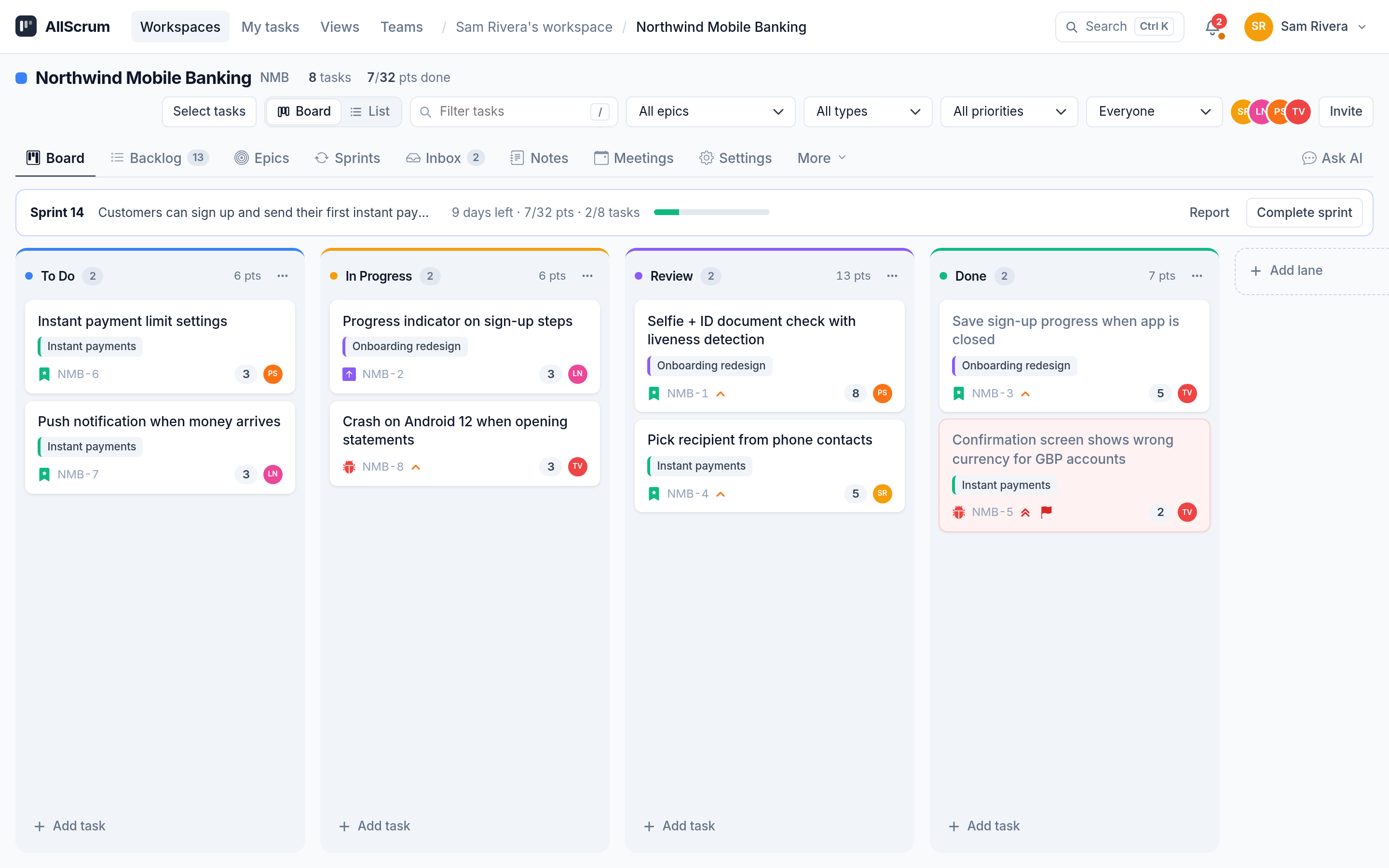
The image above shows the standard four-lane setup. Each column has its point total. The sprint bar runs across the top with the goal, days remaining, and progress.
Why the Review lane matters most
Many teams skip Review. They go straight from In Progress to Done. The reasoning is: "We test after the sprint" or "We trust each other's work."
Here is why that is a mistake.
- Without Review, there is no moment to catch problems before work is declared done.
- The In Progress column swells because people keep "finishing" things that are not ready.
- The team loses the visual signal that something is waiting for input.
The Review lane is the place where work sits while someone else looks at it. It creates a natural handoff. The person who worked on the task is not the one who decides it is done. That is a quality gate.
How to read a bottleneck: Northwind Mobile Banking Sprint 14
Let's look at the Northwind Mobile Banking team. Sprint 14 has 32 points committed. The lanes show:
- To Do: 8 points
- In Progress: 4 points
- Review: 13 points
- Done: 7 points
Review holds 13 points. Done holds 7. The sprint is about halfway through.
What does this tell you? The team has completed 13 points of work that nobody has accepted. That is a bottleneck at the review step. People are finishing tasks faster than the team can review them. The sprint will likely finish late because work is piling up at the gate.
What the team should do
The solution is not to add more reviewers. The solution is to stop starting and start finishing.
- The entire team pauses new work. Everyone picks something from Review and reviews it. Developers test, designers check, product people accept.
- No new tasks move to In Progress until Review drops below 8 points.
- The team agrees that anyone who has capacity reviews first and codes second.
Within two days the Review column should be under control. The team can then decide if they need a rotating reviewer or a permanent review slot in each person's day.
This is not a process change. It is a simple reading of the board and acting on what it shows.
When to add a lane
The standard four-column setup works for most teams. But sometimes you need to add a lane.
Add a lane when:
- A step in your flow regularly blocks work for more than 24 hours.
- One type of work consistently gets stuck and you need to see it separately.
- The team is large enough that work flows through distinct teams or roles.
For example, if your team has a dedicated QA person and testing is a separate activity that lasts half a day per task, you can split Review into "Peer Review" and "QA" to see where the wait time is.
Do not add a lane just to map your org chart. Add it only when the current lanes hide a real bottleneck.
When to remove a lane
Remove a lane when:
- Work passes through it in less than two hours on average.
- Nobody looks at the lane anymore.
- Cards never sit there because people skip it.
A lane that nobody uses is dead space. Remove it and shorten your board.
Custom lanes with colors
When you do add a lane, give it a distinct color. Color helps team members scan the board without reading every card. In AllScrum, lanes can have colors that appear on the board and in the list view.
A simple convention:
- To Do: white or light
- In Progress: yellow
- Review: blue
- Done: green
- Blocked or waiting: red
If you add a QA lane, make it orange. The point is not the color itself but the consistency. Everyone on the team learns to glance at the board and understand the state from the lane color alone.
Board vs List view
Your board is a visual tool, but sometimes you need to sort and filter tasks by data. That is when the list view helps.
In AllScrum you can switch between the board and a list view. The list view groups tasks by lane and shows key, title, points, assignee, priority, created date, and due date per task.
Use the board during daily standup and planning. Use the list view when you are assigning work, checking due dates, or running a report for stakeholders. Both views show the same data, so switching does not lose information.
Common mistakes with scrum board columns
Mistake 1: The "In Progress" graveyard
A column with 15 tasks that nobody is actively working on. The team moves things to In Progress when they are "assigned" instead of when they start.
Fix: enforce a work-in-progress limit. The team agrees that In Progress holds no more than 2 tasks per person. Everything else stays in To Do.
Mistake 2: The review bottleneck
Review fills up because only one person reviews, or because reviews are not prioritized.
Fix: everyone reviews. Alternate reviewers. Make review the first thing each person does in the morning.
Mistake 3: Done is not really done
Cards in Done are not accepted by the product owner. They are just coded or merged.
Fix: nothing moves to Done until it meets the team's definition of done. That includes review, testing, acceptance, and documentation.
Mistake 4: Too many lanes
The board has so many columns that nobody walks past it without stopping. Work takes days to cross the board.
Fix: go back to four columns. Add back only what you need after two sprints with the simple setup.
Task types and priorities on the board
Not all work is equal. A bug in production is more urgent than a feature for next release. Your board should show the difference.
In AllScrum, tasks have types (feature, bug, improvement, task) and priorities. These appear on the card with icons and colors. When you look at the board, you can immediately tell which bugs are sitting in Review and which features are blocked.
Use types and priorities to decide what to pull next. A high-priority bug in Review should be reviewed before a medium-priority feature in In Progress. The board surfaces that decision visually.
How flags help
A flag is a simple marker that says "this task needs attention." In AllScrum, you can flag a task to mark it as blocked, impeded, or needing discussion. Flags appear on the card in the board view.
When you see a flagged card in In Progress or Review, that is a team conversation at standup. Why is it flagged? What does the team need to unblock it? Flags prevent tasks from silently dying in a lane.
Quick checklist for setting up your board
If you want to try these ideas with your team, sign up free at allscrum.com. No complicated setup.