
Clients and stakeholders want visibility. They want to know what's happening without another status meeting. You want to keep them informed without spending hours preparing updates. A read-only board link solves both problems.
Sharing your Scrum board with clients gives them a window into your work. They can check progress whenever they want, see what's moving, and leave feedback without scheduling a call. You keep control over what they see, and you turn their comments into real tasks.
Here's how to do it well.
Why Clients Want Board Access
Most status meetings follow the same pattern. The client asks what's done, what's next, and whether anything is blocked. You walk through the same updates you gave last week. Everyone checks their watch.
A shared board removes the need for most of those meetings. Clients see the work happening in real time. They see tasks move from one lane to the next. They see what the team is actively doing rather than hearing a summary that's already outdated.
This builds trust. When clients can see progress themselves, they stop asking for updates. They see the work, the pace, and the occasional bump in the road. That visibility makes the relationship easier for everyone.
What to Show on a Client Board
Not everything on your board belongs in front of a client. Internal notes, detailed estimates, and unfinished thinking can create confusion or unnecessary questions.
AllScrum's read-only link lets you choose exactly what a client sees. You pick which lanes and fields are visible. You decide whether they see points and assignees. You set how long the link works.
The general approach for most teams: show the lanes that represent real progress. Hide the details that invite unhelpful questions.
Show Progress, Hide the Noise
For most projects, these lanes make sense to share:
- In Progress — shows active work
- Review — shows work being checked
- Done — shows completed work
You might leave To Do hidden. Clients often misunderstand a packed To Do lane as a sign of slow progress, when it's really just a queue of work you haven't started yet.
You might also hide backlog. A long backlog can raise questions about scope and priorities that aren't useful at this stage.
Decide About Points and Assignees
Story points are a language your team understands. Clients often read them as time estimates, which they aren't. If a client sees a 13-point task sitting in Review for three days, they might assume it's late. In reality, the work is done and waiting for a final check.
Assignees are similar. Clients may start asking why a specific person isn't working on their project, or why someone is assigned to several tasks at once.
For most client-facing boards, hide both points and assignees. Show the task, its status, and its title. That's enough for a client to understand what's happening without drawing conclusions from data they can't fully interpret.
Set an Expiry Date
A read-only link doesn't need to work forever. When you share the board for a specific engagement, set an expiry date. This keeps access controlled and reminds everyone that the link is a temporary window, not a permanent door.
Expiry dates also help you remember to review who has access. When the link expires, you can decide whether to extend it or create a fresh one.
Turn It Off When You Need To
Sometimes a client relationship changes. The project ends, the scope shifts, or you simply want to revoke access. That's your call. You can turn the link off at any time.
This is a practical control, not a hostile one. It gives you confidence to share more openly because you know you can pull access back when needed.
How to Handle Client Feedback
A read-only board is not just a viewing window. It's also a feedback channel. Clients can leave comments on tasks they see, and those comments arrive in your Inbox.
This is where the real value shows up. Instead of a client sending a vague email that lands in your personal inbox, their feedback arrives attached to the specific task it's about.
Feedback Becomes Tasks
When a client leaves feedback on the board, it appears in your project's Inbox as a comment on the task they were looking at. Your team can read it, respond to it, and decide what to do.
If the feedback requires work, you can turn it into a task or checklist item. If it's just a question, you can answer it directly and mark it read.
This keeps feedback in context. You don't have to guess which task a client was talking about. You don't have to search through old emails. The feedback lives where the work lives.
Keep a Clear Feedback Workflow
Set up a simple workflow so feedback doesn't get lost.
- Check the Inbox daily for new feedback.
- Assign someone to respond within a set time.
- Decide whether the feedback becomes a task or just needs an answer.
- Mark it read once it's handled.
This takes five minutes a day and prevents the common problem of client comments disappearing into the void.
Use Feedback to Improve
Client feedback often reveals gaps you couldn't see from inside the team. A client might notice that a feature's description doesn't match what they expected. They might spot a missing requirement. They might simply ask a question that exposes an assumption.
Treat this feedback as valuable input. It's free quality assurance from the people who will actually use what you're building.
Worked Example: An Agency Sharing a Board
Let's look at the general case of an agency sharing a board with a client. While Northwind Mobile Banking is an in-house team, this pattern applies to any team that works with external stakeholders.
An agency has a client who wants to see progress on a website redesign. The project has the usual lanes: To Do, In Progress, Review, and Done. The team uses story points and assigns tasks to specific people.
The agency creates a read-only link and configures it as follows:
- Visible lanes: In Progress, Review, Done
- Hidden lanes: To Do, Backlog
- Hidden fields: Points, Assignees
- Expiry: End of the project
The client gets a link and can see the board anytime. They see three tasks in Review and five in Done. They don't see the fifteen tasks sitting in To Do that haven't been started yet. They don't see that Tom is assigned to four tasks and Lena is only on one.
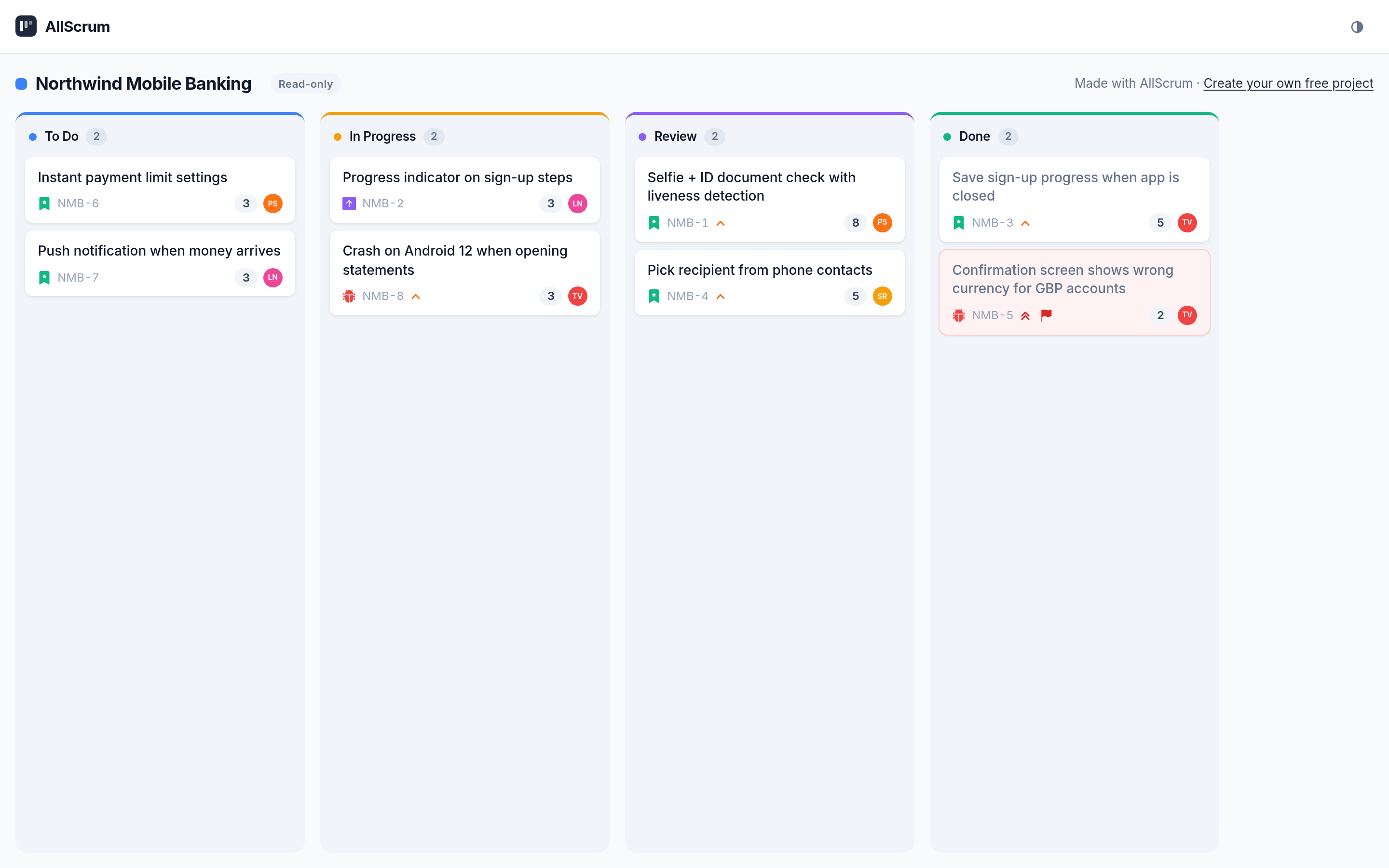
The client opens the board on Monday morning. They see that the checkout flow is in Review. They remember a conversation about how the payment step should work. They leave a comment on that task: "Should the payment confirmation include a reference number?"
That comment lands in the agency's Inbox. Priya sees it during her morning check, confirms the reference number was already planned, and replies to the client. She marks it read. The client feels heard, the team moves on, and no meeting was needed.
The same client could have sent an email that sat in someone's inbox for a day. Instead, the feedback was attached to the relevant task and handled within hours.
Common Mistakes to Avoid
Sharing a board sounds simple, but teams often make a few mistakes.
Sharing Too Much
The most common mistake is giving clients access to everything. They see the full backlog, all the internal notes, the point estimates, and the assignees. Then they start asking questions your team doesn't want to answer.
Start with less. You can always expose more later, but you can't easily un-tell a client something they've already seen.
Forgetting the Link Expires
You set an expiry date and then forget about it. The link stops working, and the client can't see the board. They write an email asking what's going on, and you have to explain that the link expired.
Add a reminder to your calendar when you create the link. Or check your active links at the start of each sprint.
Ignoring the Feedback
A read-only board with feedback is only useful if someone reads it. If client comments sit in the Inbox for a week, the client stops using the board. They go back to email, and you lose the benefit of contextual feedback.
Make checking the Inbox part of your daily routine. If you don't have a routine, start one. Five minutes in the morning is enough.
Making the Link Work for Your Team
Every project is different, so start with a simple configuration and adjust as you learn.
For your first client-shared board:
- Share the three progress lanes: In Progress, Review, Done.
- Hide points and assignees.
- Set an expiry date a month out.
- Add a daily Inbox check to your routine.
- Review the configuration at the next sprint retrospective.
After a sprint or two, you'll know whether the client needs more visibility or whether you should hide something else. Adjust from there.
Checklist
Sharing your Scrum board with clients gives them the visibility they want while keeping you in control. Set it up once, handle feedback as it arrives, and you'll spend less time on status meetings and more time building.
Try AllScrum free at allscrum.com and give your clients a window into your work today.