
The problem: requests that disappear into email and chat
Every software team hears from clients and users. A bug report arrives in a direct message. A feature request lands in someone's email inbox. A support ticket is forwarded to a developer as a screenshot of a screenshot.
None of these requests become a tracked, visible piece of work. They sit in personal inboxes, get buried in chat threads, or are forgotten after a verbal "I'll look into it".
If your team uses a Scrum board, you already have structure for your own work. But the channel between the people using your product and the tasks on your board is broken.
A single intake form your clients can actually use
A public intake form is a web page where anyone with the link can send you a request. No sign-up. No account creation. No "download our app". They fill in the fields you choose, click send, and a task appears on your board.
This isn't a support ticket system with a separate queue. It's a direct bridge from the person reporting a problem to the team that can fix it. Every submission becomes a task with the same fields, priority and lane as work you plan yourself.
How it works
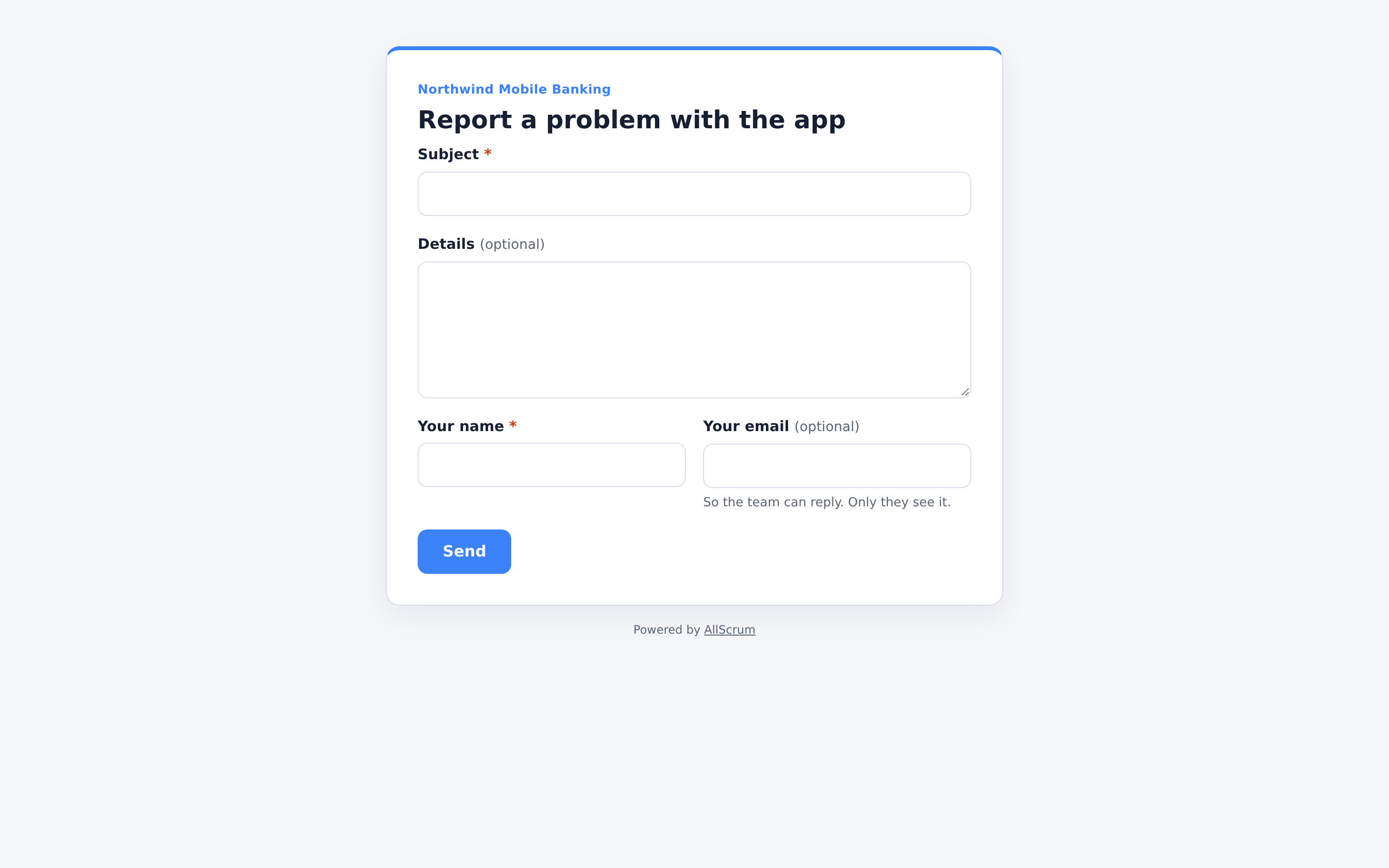
Your project gets a unique public page at /f/{token}. Anyone with that link can submit:
- A subject that becomes the task title
- A description of the problem or request
- Custom questions you define: short answers, paragraphs, dropdowns or checkboxes
- Their name and email (optional, or required)
Each submission becomes a task in the lane you choose—typically the backlog. The task's creator shows as Name (form: Title), like "Ann via Bug report", so you always know where it came from.
The Inbox: one place for everything from outside the team
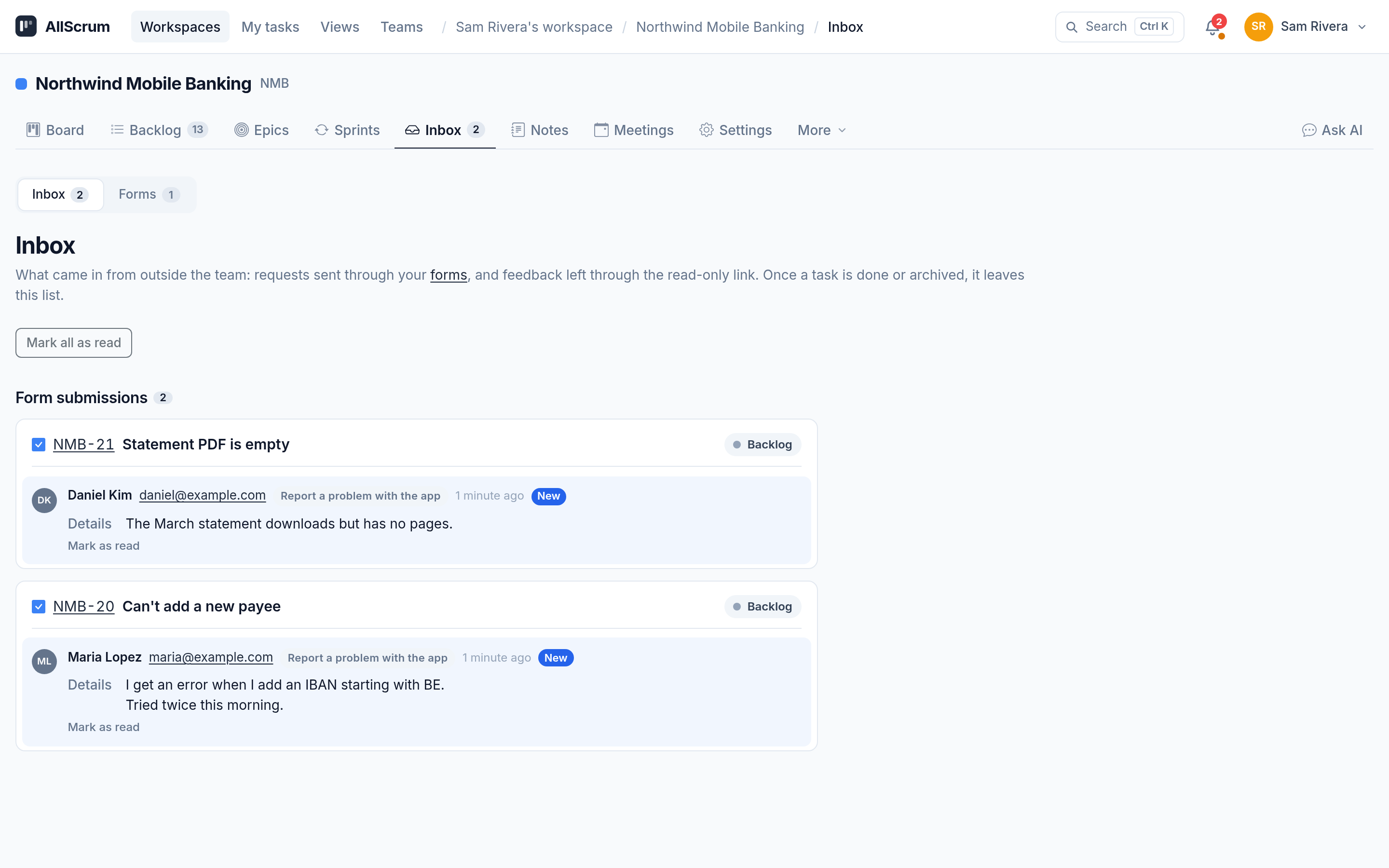
The Inbox tab collects everything that came from outside your team. Form submissions appear here first, unread, until someone marks them read or the task is done. You see who sent it, which form they used, and when it arrived.
This replaces the old habit of scanning chat messages for "did anyone see that bug report Maria sent last week?" Everything from outside is in one list, and once you act on it, the task lives where all your work lives.
Why this beats email and chat
Email has no shared state. When a client emails your product owner, only that person knows about it. If they're on leave, the request is invisible. A form submission creates a task that every team member can see, assign and prioritise.
Chat buries requests. A message at 10 AM is twenty messages deep by lunch. Even if someone replies "I'll make a task", that depends on them remembering to switch context. A form skips the middle step: the submission is the task.
Everyone gets the same fields. When clients write emails, you get different information each time. "It doesn't work" with no description. Or a 2000-word essay with the relevant detail on page three. A form asks the same questions every time, so every task arrives with the same structure.
Setting up a form that works for your team
Choose what to ask
More fields mean more information—but also more friction. Start with the minimum your team needs to triage a request:
- Subject – Make this required. Otherwise you get "Feedback" as a title with the real detail in the description.
- Description – Make it optional if your custom questions capture enough context.
- Your own questions – Up to 15. Use a dropdown to ask "What type of issue is this?" or checkboxes for "Which area of the app?". Each can be required or optional.
- Name and email – Keep both optional if you want low-friction submissions, or require email so you can reply.
The form editor shows a live preview next to the fields, so you see exactly what your users will see before you share the link.
Decide where tasks land
New submissions can go straight to your backlog, or to a specific board lane. You can also set a default:
- Task type (bug, feature, chore)
- Priority
- Assignee
If you set the lane to the backlog, submissions join the ranked list of work the team will discuss at the next sprint planning. If you have a triage lane on your board, send them there.
Share the link, embed the form, or add a floating widget
- Direct link – Share the public form URL in a support auto-reply, on your status page, or in a client onboarding email.
- Embedded iframe – Add the form to your website or help centre, so users don't leave your site to report an issue.
- Floating widget – A small button in the bottom corner of your website opens the form in a panel. No JavaScript required from your site; the widget loads in its own shadow root and won't break your styling.
The floating widget is especially useful for SaaS products. A user hits a problem, clicks the feedback button in the corner, fills in the form and sends it. They never leave the page. The task appears in your backlog.
Protect yourself from spam
Public forms attract bots. AllScrum handles this without adding a CAPTCHA or loading any third-party script:
- A hidden field that bots tend to fill in
- A timestamp check that rejects forms sent too quickly after opening
- Rate limits per email address and per project
Worked example: Northwind Mobile Banking
Northwind Mobile Banking builds a mobile banking app. The team of Sam Rivera, Priya Shah, Tom de Vries and Lena Novak has a public form titled "Report a problem with the app".
Maria Lopez finds she can't add a new payee. She opens the form via the form link, types "Can't add a new payee" as the subject, writes a short description, and sends it. The task becomes NMB-20 in the backlog with the title "Can't add a new payee". The Inbox shows "Maria Lopez (form: Report a problem with the app)".
Later that day, Daniel Kim notices his statement PDF is empty. He finds the same form link. His submission becomes NMB-21 titled "Statement PDF is empty", also in the backlog.
The next morning, Sam opens the Inbox. Both tasks are there, marked new, with each sender's name and email so the team can reply. The team agrees NMB-20 should be part of the next sprint and gives it a priority.
Without the form, Maria's report might have been a direct message to Priya that got lost in a busy day, and Daniel might have given up and left a one-star review. Instead, both requests are structured tasks the whole team can see.
Submissions keep sensitive data where it belongs
When someone fills in a form, their name and email are not put in the task description. This matters if you share a read-only link to your board with a client—they shouldn't see other people's contact details.
The name and email live in the submission record. Only your team sees them, in the Inbox and on the task's "Sent with a form" section. The description contains only what the person wrote and your custom question answers.
Common mistakes and how to avoid them
Too many fields. A required field for every possible detail makes people abandon the form. Make only what you truly need to triage a task required. Let the rest be optional.
No default assignee. If nobody is automatically assigned, new tasks can sit unread. Set a team member or leave it unassigned with a clear team agreement that someone checks the Inbox daily.
Closed forms without warning. If you change a form's status to closed, keepers of the old link will see a "This form is closed" message instead of submitting. That's fine, but make sure you have a replacement link ready if the form was your primary intake channel.
Not checking the Inbox. A form only helps if someone reads the submissions. Make it part of your daily stand-up or a rotating duty.
Checklist for setting up your intake form
From submission to sprint
A public intake form turns every client request into a visible, structured task. No more "did anyone get that email?". No more requests that arrive as chat messages and leave no trace.
The same team that plans work from the backlog, splits it into tasks and ships it can now receive work from outside the team with the same process. The form handles the intake. The Inbox keeps it visible. Your board tracks it through to done.
Ready to stop losing requests? Try AllScrum free at allscrum.com.