
You've probably heard about MCP by now. Maybe a colleague mentioned it, or you saw it in release notes. It sounds technical — Model Context Protocol — and you might have moved on. But MCP is about to change how your team works with AI, and it's simpler than it sounds.
Let's break it down.
What MCP is in plain words
MCP (Model Context Protocol) is a standard way for AI assistants like Claude to talk to tools you already use. Think of it as a universal adapter.
Before MCP, connecting an AI assistant to your project management tool meant one of two things:
- Copy-pasting tasks into the chat and asking for advice
- Building a custom integration that only worked for one tool
MCP changes that. It's an open standard, so any MCP-capable assistant can connect to an MCP-enabled tool. Your assistant doesn't need to know your tool's internals. It just speaks MCP.
For your Scrum board, MCP means your AI assistant can read your tasks, understand your sprint, and even make changes — with your approval.
Why connect your board to an AI assistant
Imagine asking Claude: "What's assigned to me this week?" and getting a clear answer based on your actual board. Or: "Create a bug for this issue" and having a task appear in your backlog, ready to be prioritized.
MCP makes this possible. Your assistant becomes a teammate with read access to your board.
For a small team, this is genuinely useful. You're not drowning in tasks like a big enterprise, but you still have context-switching costs. Asking your assistant to check "what's in Review" saves a click or two. More importantly, it keeps your focus on the work, not on navigating your tool.
What MCP looks like in practice
Here's how connecting works, step by step:
- Open your assistant's MCP settings. Claude and other MCP-capable AI assistants have a place to add MCP servers.
- Add AllScrum's MCP server. You'll find the address on the AllScrum connect page.
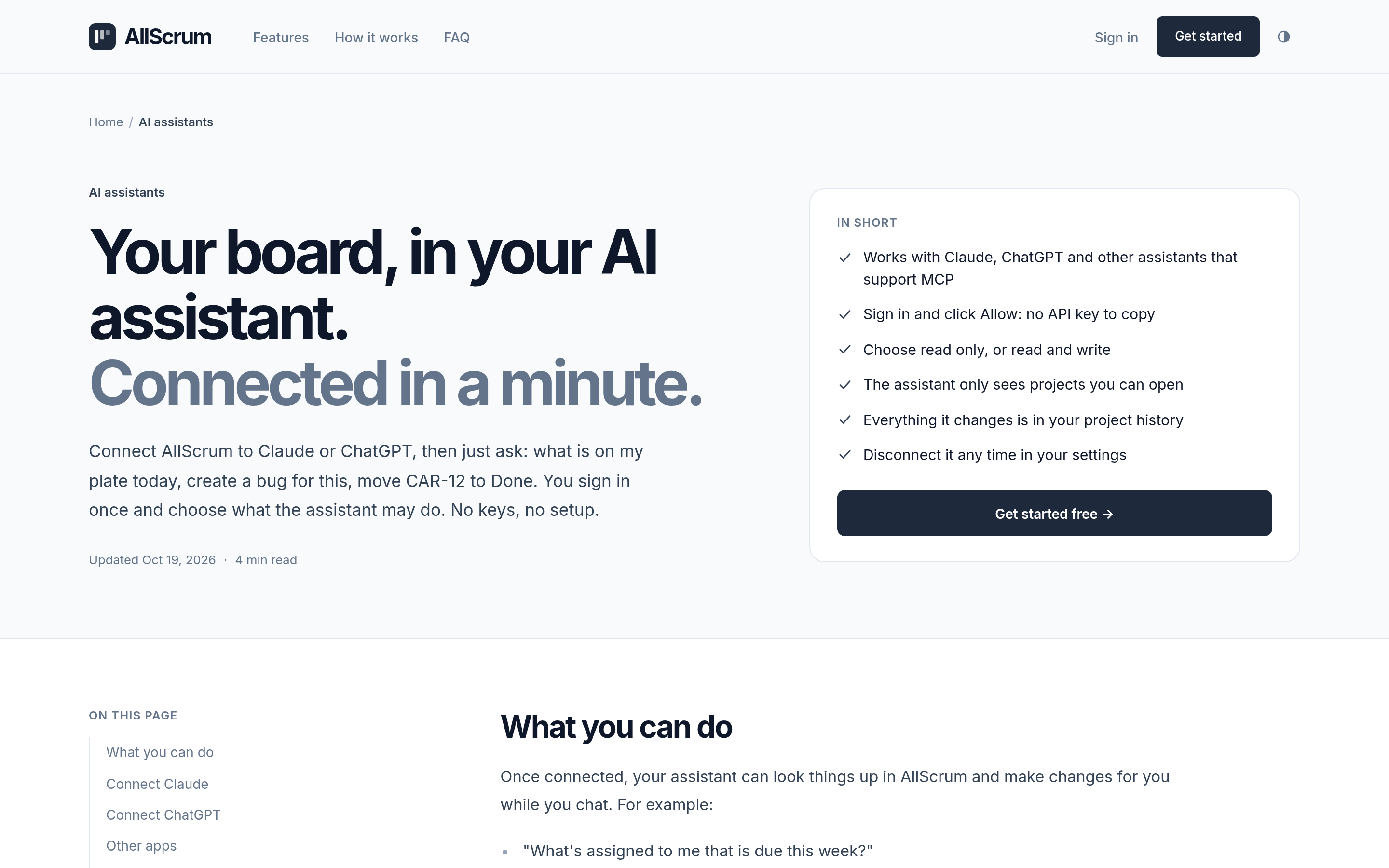
- Sign in and click Allow. No API key to copy, no long strings to paste. It's the same "Sign in with Google" flow you already know.
- Choose your access level. Read-only, or read and write.
- Start asking. Your assistant can now see your projects and answer questions about them.
The "Sign in and click Allow" part is worth repeating, because it's a real improvement. In the past, connecting tools meant generating an API key, pasting it somewhere, and hoping you didn't share it with the wrong person. With MCP, you authenticate through the same OAuth flow you use for everything else.
What to ask your AI assistant
Now that you're connected, what's actually useful? Here's a starting point:
- "What's assigned to me this week?" — Get a quick list of your tasks across projects
- "What's in Review?" — See what's waiting for feedback before the next standup
- "Create a bug for this" — Have a task created in your backlog
- "Move NMB-4 to Done" — Update a task's status when you finish it
- "Summarize the sprint goal and what's left" — Get a status update without opening the board
- "What epics are in progress?" — Check big-picture goals across sprints
The key is that these aren't hypothetical questions about Scrum. They're specific to your board, your tasks, your sprint. The assistant reads your actual data.
A worked example
Let's follow the Northwind Mobile Banking team. They're a four-person team building a mobile banking app, and they've just connected their board to Claude.
It's Tuesday morning, and Sam Rivera is running sprint planning later today. Sprint 14 is running with the goal "Customers can sign up and send their first instant payment." Sprint 15 is queued with 4 items (18 points).
Sam asks Claude: "What's in Sprint 15, and how does it align with our epics?"
Claude reads the backlog and answers: "Sprint 15 has 4 items totaling 18 points. Three relate to the Onboarding redesign epic, and one is tagged under Instant payments. The Accessibility audit epic has no items in this sprint."
That's useful context for planning. Sam notices the Accessibility audit is unfunded in the next sprint and flags it for discussion.
How to keep your board safe
Connecting an AI assistant to your project management tool raises a fair question: is this safe?
Here's how it works in AllScrum:
The assistant only sees projects you can open. Your access rules apply. If you can't see a project, neither can the assistant.
You choose read-only or read-and-write. For most teams, read-only is a great starting point. Your assistant can answer questions and summarize, but it can't change anything. When you're comfortable, you can create a read-and-write connection for a specific project.
Every change is in the project history. If the assistant creates a task or moves one to Done, it's logged. You can see who did what and when — and you can undo many changes.
You can disconnect any time. In your settings, you'll see the connected app and can disconnect it. That's it. The assistant loses access immediately.
The MCP connection uses OAuth 2.1, which includes some smart security defaults. Codes and refresh tokens are single-use: if they're used twice, the connection ends. Redirect URIs are matched exactly, so no one can bounce you to an unexpected site. These details matter to security teams, but for you, the practical takeaway is: this is a well-designed, secure connection.
But I have developers on my team
If your team has developers who want to build something more custom, they can use the REST API directly with personal API keys. These are read-only or read-and-write, with an expiry and optional IP allowlist.
This is useful for things like:
- Syncing tasks to a reporting dashboard
- Building a Slack bot that posts daily summaries
- Automating routine moves based on triggers
The API keys are separate from the MCP connection. An API key is for code; MCP is for conversations. Your developers can read the full reference at allscrum.com/developers.
A note on forms and the MCP connection
If you use AllScrum's public forms — where clients or users send requests without an account — the MCP connection doesn't change anything about them. Forms submit tasks to your board as usual, and your assistant can see those tasks like any other.
The MCP connection is about giving your assistant context, not about changing how your team receives work. Your Inbox still collects form submissions and read-only link feedback. Your assistant can help you triage, but the human decisions stay human.
Common mistakes to avoid
Giving read-and-write access too early. Start with read-only. Get comfortable with how the assistant handles your data before you let it create tasks.
Asking vague questions. "What's going on?" gets a vague answer. "What's in Review that's blocking the sprint?" gets something useful.
Forgetting the human in the loop. The assistant proposes, you dispose. When it creates tasks, review them in your backlog and edit them as needed.
Ignoring project history. If something looks wrong, check the history. You'll see exactly what happened and can undo many changes.
A quick comparison: MCP vs. API keys
| MCP | API key | |
|---|---|---|
| What it's for | Talking to assistants | Building integrations |
| Authentication | Sign in and click Allow | Copy and paste a key |
| Access control | Read-only or read-and-write | Read-only or read-and-write |
| Who uses it | Everyone on the team | Developers |
| Revocation | Disconnect in settings | Delete the key |
Both are valid. They serve different purposes.
The 30-second setup
Here's how fast this goes:
- Go to allscrum.com/connect-ai
- Find the MCP server address
- Add it to Claude
- Sign in and click Allow
- Choose read-only or read-and-write
- Done — start asking
That's it. No API key to copy, no integration code to write, no IT ticket.
Your checklist
- □ Start with read-only access
- □ Ask specific questions about your board
- □ Have the assistant create tasks only after you're comfortable
- □ Check your project history regularly
- □ Disconnect if you're not using it
- □ Point your developers to the REST API for custom work
MCP is the practical way to connect Claude and other AI assistants to your project management tool. It's secure by design, simple to set up, and genuinely useful for small teams. Try it free at allscrum.com — connect your board to your favorite AI assistant today.